
Step 1
Create your account
Create your account
Sign up with Gmail and confirm the email code, or use Google when configured. Select Pizza restaurant and your branch. The trial starts automatically.
How to use ZAIN’S for Pizza restaurant: Organize sizes, dough and extras for dine-in and delivery orders.
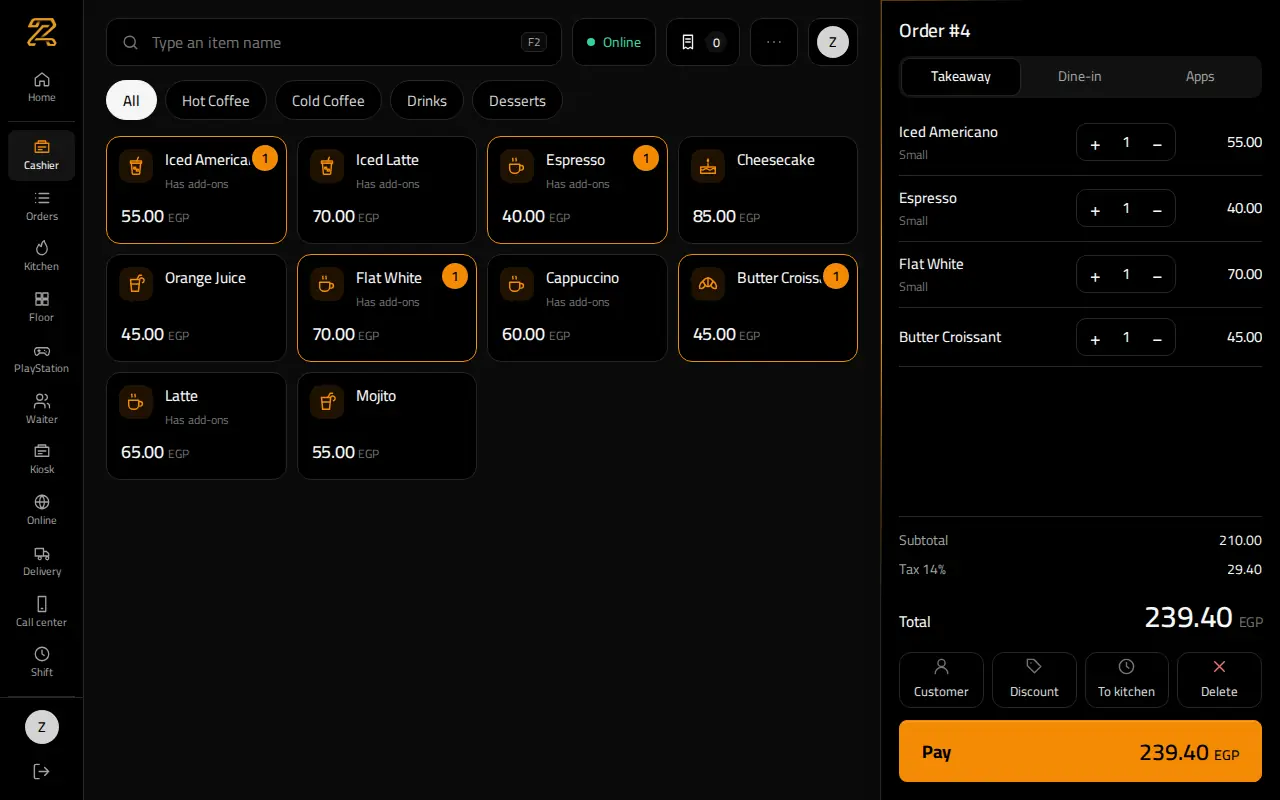
Create your account
Sign up with Gmail and confirm the email code, or use Google when configured. Select Pizza restaurant and your branch. The trial starts automatically.
Set up the business and payment
Review tax, payment methods, receipt details and staff discount limits in Settings. Test the printer on the device that will use it.
Food menu
Add categories, names, prices and the correct units. Example: A large pizza with extra cheese. For imports, download the template and test a small set first.
Staff accounts and sign-in
The owner creates each employee account and assigns a role and branch. Staff sign in with a phone number and password, or a PIN on a trusted device. No phone verification code is required. The owner manages staff password recovery.
Organize sizes, dough and extras for dine-in and delivery orders.
Set up the required items, prices and customer details before confirming.
Record the actual status, quantities and any payment, using the appropriate screen.
Check the final bill, payment method and remaining customer balance.
Payments and shift closing
Check the payment method before confirming the bill. At shift end, count actual cash and submit it in Shift. Managers review differences according to permissions. Start returns from the original invoice and record a reason.
Owner follow-up
Start with the dashboard, then filter reports by period and branch. Sales, collections, costs and returns have different meanings. A credit sale does not mean cash was received today.
Trial, subscription and branches
Review the duration, price and active branch count in Subscription before requesting payment. The main branch starts automatically at signup. Only the platform administrator can add, edit, activate or deactivate branches. Contact support for an additional branch and its price. Branch prices apply per active branch. Pro activation does not itself record a payment. Available features depend on the plan and permissions.
Working during an internet outage
Open checkout online first. Supported transactions wait in this device’s local queue during an outage. Review synchronization after reconnection. Do not clear browser data or manually repeat pending sales. Approval and balance checks still apply.
Tables and their bills
Open a table order, review items sent for preparation, then collect or split payment. Close the bill when service is complete.
Delivery and collection
Check the customer, address, zone and fee. Assign a driver when used, update delivery status, and reconcile money actually collected.
Ingredients and recipes
Configure ingredient units and recipe quantities where used. Review receipts, waste and stock counts. Recorded cost is required for meaningful profit reports.
Online orders
Review the public link, offered items and settings in Online. Confirm incoming orders and follow the workflow for your activity. Online payment needs its own configured account.
Customer credit and outstanding balances
Customer credit is shared across their transactions; a deposit is not automatically reserved for one ticket. Credit sales require an identified customer, an allowed limit and an enabled method. Record collections in the customer account.
No results for this word for the selected role. Try another word or show all.
All activity guides